

After any WordPress project a client will have a number of questions about their new site so it is the freelancer’s best interest to include documentation.
The WP Help plugin by Mark Jaquith makes it easy to add documentation via custom posts that exist internally within the WordPress admin. The plugin also includes the ability to sync documentation that exists in another WP Help installation. This is really useful if the same documentation is used across a number of sites.
WP Help
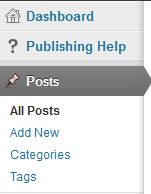
After installing and activating the plugin, you will have a new menu item in the WordPress admin called Publishing Help. This is directly below the Dashboard but can be moved to a couple of different locations.
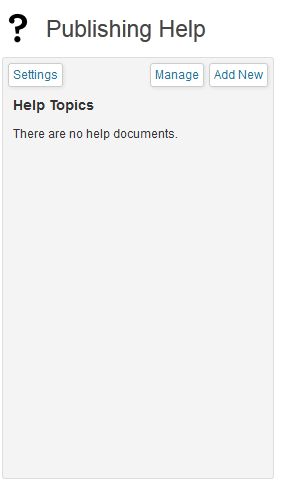
When you first click on the Publishing Help section you will be presented with the following screen that includes Settings, Manage and Add New. As you can see, I haven’t added any documentation yet.
Settings
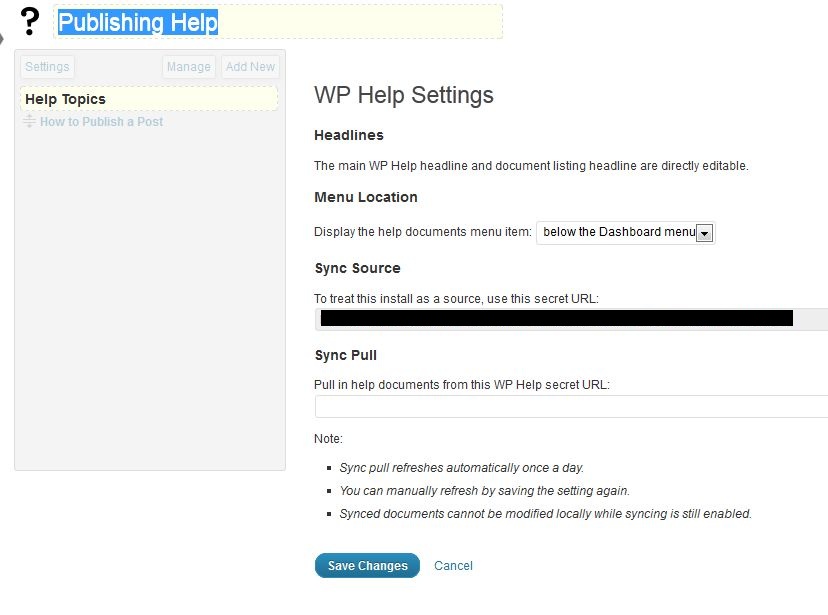
- Headline – You can change the Publishing Help headline to something else.
- Menu location – There are a couple of different choices as to where the Publishing Help section can reside in the WordPress admin.
- Sync Source – This is the URL you would use on a different site, if you wanted to pull in the help documentation from this site. For example, I installed WP Help on this site and another one. I published the help post on this site. On the other site, I used this Sync Source URL in the Sync Pull field and the help documentation was pulled into the other site. The sync happens once a day and any edits will show up in the original and other location.
- Sync Pull – This is the URL from a different WP Help site, if you wanted to pull that documentation to this site.
Manage
This provides a list of all of the help documentation on this site.
Add New
This is where new Help documents are added. As you can see, it is almost exactly like writing a WordPress post. In the Publish area you are given the option of making a document the default help document. Any content that can be added to a WordPress post, such as text, images and videos, can be included.
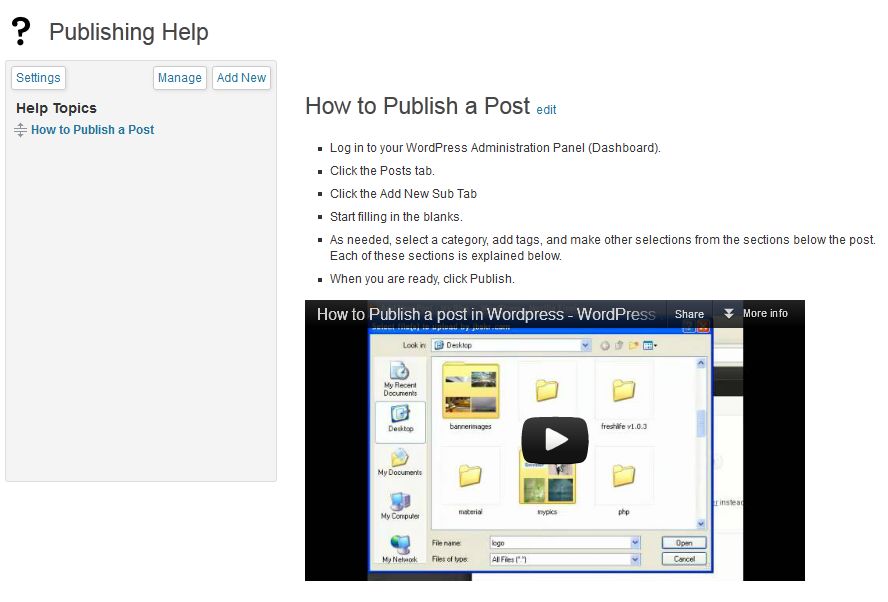
Once a document is published, it will show up in the list of Help documentation. Clicking on the title of the Help document will display it on the right. Help documents can be reordered via drag and drop.
Other Notes
The Help can be viewed by anyone who can save a post: Administrators, Editors, Authors and Contributors. Documentation can be edited by users who can publish posts: Administrators and Editors.
If the same documentation is going to be used across multiple sites, I would probably create a WordPress help installation and pull the documentation from that location rather than from my own site to a client’s site.
Do you think this plugin is useful for your client projects? Do you think spending the time creating the documentation will save time on questions later?
photo credit: loop_oh

This is very nice and useful post. I like your video and its very easy to understand. Once again thanks for this new information.