

I incorrectly assumed that it was common knowledge to not paste content from the microsoft office suite directly into the WordPress Visual editor but I encounter problems related to this issue so frequently that I thought I should do a quick write-up about the issue.
When you copy and paste content from Microsoft Word, it attempts to preserve the formatting and adds sorts of “ugly” formatting code into the WordPress editor. Frequently this results in the page not displaying properly in Internet Explorer. (It amuses me to no end that Microsoft’s web browser can’t deal with it’s Word Processor formatting code. For some reason Firefox is able to work around it.) So, someone will come to me and tell me that the formatting on the page is messed up or that the sidebar is in the wrong location. It isn’t actually a layout or WordPress code issue but rather that formatting code from Microsoft Word is affecting the layout.
When you use the Visual Editor you won’t see the formatting code. You can, however, determine if this is the problem by switching to the html editor or viewing the source code in the web browser. If you see code that looks like the following, then you can be confident that the Microsoft Word formatting is the cause of the problem.
<p class="MsoNormal" style="margin: 0in 0in 10pt;">
<span style="font-size: small;">Some text here.</span>
<span style="mso-spacerun: yes;"> Some more text here. </span>
<span style="mso-spacerun: yes;">And some more.  </span>
The class and styles that start with Mso giveaway that the content was pasted directly from Microsoft Word. If that class and span information is removed, the formatting problem is corrected.
So, what do you do if you have a lot of content in Word that you want to post on your WordPress site?
- Use the paste from Word button the toolbar. You need to click on the Kitchen Sink button to see it.
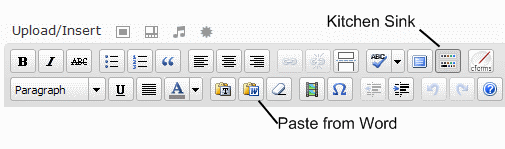
- Paste the Word content into a text editor like Notepad and then copy and paste it into WordPress.
Have you ever run into this type of formatting problem? Personally I haven’t because I don’t use Microsoft Office and I don’t use the Visual Editor but I encounter this issue almost weekly.
photo credit: SierraBlair

Oh gosh YES YES YES YES YES – this really needed to be said! I always have one notepad file open to which to paste my text and then format it as necessary. It’s a lifesaver.
.-= Barbara Ling, Virtual Coach´s last blog ..How to dramatically increase your optin list with ease =-.
Hi Barbara – I thought everyone knew this but I run into the problem almost weekly.
Hi Kim – Ditto to what Barbara said. I’d have blog posts be gobbledy-gook or disappear completely in IE. Can we say we hate IE here? To be safe, I always C&P from the text window. If I’m pasting something from the net and using it as an inspiration source, I’ll use an open notepad window. Even so, for me it was a big revelation that WYSIWYG is actually missing a letter: WYSIWYMG What You See Is What You Might Get. Especially when uploading photos. Thanks.
.-= Betsy Wuebker´s last blog ..CHANGE DOESN’T COME FROM THE TOP =-.
Hi Betsy – LOL – They should definitely change it to include may.
WYSIWYG editor’s are far from perfect but have improved a lot.
It would be quite nice to have some sort aversion therapy in place for this. Everyone copying and pasting from Word into a website of any sort should receive a mild electric shock.
That would soon teach them.
Maybe.
On the WordPress courses we give we do our best to teach people the importance of pasting correctly, with examples and exercises. I think it sinks in, but I can see how it can be easily done.
.-= David Coveney´s last blog ..We’re Presenting at WordCamp UK 2009 =-.
Hi David – And then they insist that they didn’t paste from Word when I know what the code looks like and can see it right in front of me ;-)
I’ve had it with the whole Office suite. I’ve never used Word to copy things into WordPress but having to use it (and Powerpoint) on a day to day basis makes me want to cry.
Good post.
.-= Jim´s last blog ..Poor Sammy Davis Jr. =-.
Hi Jim – Your job requires way too much Powerpoint. I actually had to open a ppt file yesterday but it was just an image and I used Open Office to convert it to another format.
I face this problem all the time as my drafts are always in Word :) Mostly I face issue with single quote (quoted words, apostrophe), double quote (in URLs), hyphen and ellipsis. These days, I keep the URLs in my drafts without any double quote and add it before publishing.
Sometimes, I use your trick. Paste to Notepad and transfer from there :)
Hi Ajith – Can you start your drafts in a different program? I haven’t tested pasting directly from Open Office but that might work a lot better and the word processor is very similar to Word. (and free!)
Yep, I should try that… However, the worst thing happens when you save Word doc as HTML – The size of the HTML will be so huge with all those stupid stylesheets added to the header.
.-= Ajith´s last blog ..How much traffic does your blog ‘actually’ get? =-.
Hi – Oh goodness – don’t do that :-)
Word in general is evil. Like others have said, I do most of my posts in Notepad or Wordpad, and just manually add html when I need something special. I have seen some sites done by Word, and the coding behind them is just a nightmare.
~ Kristi
.-= Kikolani´s last blog ..Benefits of Blogging – Becoming an Authority =-.
Hi Kristi – The only Microsoft product I use is Windows – I don’t use anything else that they make. And I wouldn’t use Windows if more games were made for Linux.
Microsoft and their silly coding. Why don’t they like us?
Sometimes, my boss forgets about running the post through Notepad and I have to come in and delete the gnarly code. Plus, I’m trying to ween the boss away from using the visual editor.
.-= Yael K. Miller´s last blog ..MillerMosaicLLC: Help please: I’m looking for how to make a simple iFrame bar at the bottom of a page. =-.
Hi Yael – I sent a tweet to David about this but maybe it would help with the boss. It’s a plugin that will strip out all of the Word formatting. I haven’t used it though so don’t know about issues with it.
http://www.thismuchiknow.co.uk/?p=44
Oh my goodness I wish I’d read this about a year ago! When I first started using WP I had no idea why sometimes things would look really funky.
Then I finally figured it out, but spent about a week taking out all the codes by hand!
Finally, I figured out what the W and T buttons were for!
.-= Tracy´s last blog ..A bunch of random items =-.
Hi Tracy – That must have been so tedious to edit all the posts. When something is really dull like that it takes me forever to get through it.
As Stratos pointed out to me yesterday, it doesn’t help that the W and T buttons are hidden.
I generally type up my post straight inside the blog box itself. I’ll then keep hitting preview/refresh, and tailor from there. If I do use an external source, it’s always notepad, for the reasons you mention here. And for the way word tends to mess up some of my formatting to.
Kinda ironic when the platform is called WORDpress… ;-)
.-= Danny Brown´s last blog ..The Ego Has Landed (Or Has It?) =-.
Hi Danny – Thank goodness that Microsoft doesn’t have a copyright on the word “Word”. ;-)
Yes, I have learned this the hard way too. I don’t see how this could be common knowledge if its not written anywhere in WordPress.org – or least least its not where it can be easily seen. I could be wrong. I finally found out what was going on after a series of Google searches on the issue.
I usually type my posts in the editor, but someone gave me a guest post in MS Word which started the whole issue for me.
.-= carla | green and chic´s last blog ..Guest Post: Eco-Designers Embrace Full Figures =-.
Hi Carla – You’re right – the information is hidden. I think it was one of those things that I read one time and incorrectly assumed that everyone knew about it. Based on the comments a lot of people have had problems because of this issue.
I used to do it all the time when I started blogging. Took me a while to figure this one out. :)
.-= Vered – MomGrind´s last blog ..Low Rise Jeans: Five Reasons To Hate Them, One Reason To Love Them =-.
Hi Vered – It sounds like a lot of us learned about this the hard way.
I didn’t see this in the previous comments so I thought I’d share:
In addition to the Paste from Word option, you can use the ‘paste as plain text’. I use this with all my blog posts…if you copy from word (or anywhere else), the paste as plain text will remove all formatting regardless of the original form.
.-= Eric D. Brown´s last blog ..Minding the gap between Strategy and Tactics – The New CIO Series =-.
Hi Eric – Thanks! I hadn’t thought about that or tried it. That would save a step to just always use the Paste from Text option.
When I was a new blogger (but not new to html) I did this. After looking at the code I was like, “What the heck?”
If you don’t mind the link, the WordPress tutorials section on our site has a video tutorial on How to Copy/Paste From MS Word to Your WordPress Blog.
Like you said though, I never even use the Visual Editor, in fact, mine is broken and only the html works.
Hi John,
It’s Microsoft’s own special code. :-)
Thanks for the video!
Amazingly this doesn’t happen with the latest Apple version of Word. I always check and being a coder I don’t feel right unless I’ve seen the html. So far no wonky code. WordPress should add a Word cleanup function like Dreamweaver has.
.-= Tracey Holinka´s last blog ..Cure iPhone Envy on a Budget =-.
Hi Tracey – Is this Apple’s word processor?
I thought that Dreamweaver also added in odd code … ? But I could be
wrong – if I’ve ever used it, it was years ago.
I use Microsoft Word 2008 for the Mac. Often Microsoft’s Mac software versions are better than the Window’s versions. Go figure.
I don’t remember Dreamwever ever adding odd code and I’ve been using it since Dreamweaver 1 (mainly on the Mac). Maybe its a Mac thing.
.-= Tracey Holinka´s last blog ..Ready to Blog for Biz? Research Before You Leap! =-.
I always paste from Word into Windows Live Writer. I really love it. I can see what I write and go back and forth between code and non-code. I can also plan for where I want to put my pictures and easily add bullets and links.
.-= LisaNewton´s last blog ..Free Summer Concerts in Los Angeles =-.
Hi Lisa – Does the code look ok once it is sent to WordPress? I don’t
have a lot of experiences with Windows Live Writer.
Kim,
You have single-handedly saved dozens (if not hundreds) of new WP blog owners a ton of frustration. Great job.
And leave it to Microsoft to gum up the works. Sheesh
And now there’s talk of them making Office available on line for “free” but I’ll tell you this: They can get my Open Office when they pry it from my cold, dead hands.
George
.-= Tumblemoose´s last blog ..Vintage Typewriters and Deviled Ham =-.
Hi George – Thanks!
I like Open Office too – I’m a big fan of “Export as PDF” ;-)
Though I do most of my work in Notepad++
Hi Kim. This was important to share! I know someone who did this and crashed their blog. Luckily I found out about this early on, but I rarely had the situation crop up. When I wrote my posts I wrote them write in WordPress, not MS Word. Occasionally I do cut and paste though and I’m extra careful. I even save the content in Notepad first to strip the formatting out and then I paste it using your directions. I know, I’m being paranoid, but it just feels better to take this extra step… just in case.
.-= Davina´s last blog ..Roaming with the Metaphor =-.
Hi Davina – Ugh. I’ve had it really mess up the layout – like drop the sidebar to the bottom – but have never had it crash the blog. It sounds like you are being extra careful but at least you don’t have to worry about that yicky code.
I’m late for this one, but it has happened to me, too. I also get different issues when I paste from Open Office Writer. I had no idea there was a “Paste from Word” button, My way around thisi problem is to use Save As, choose Plain Text, and then open what I saved in NotePad or WordPad. As for the commenter who suggested aversion therapy, there actually is some — the quotation marks don’t come out right when you past from Open Office, so all your links are broken.
.-= Dot´s last blog ..Comment on Life Goes On by Davina =-.
Hi Dot – Thanks – I didn’t know if there was a similar problem with Open Office – now I do. Messed up quotes as aversion therapy :-)
I faced such a problem when i started blogging. But now i use Windows Live Writer
.-= Madhur Kapoor´s last blog ..Tweak Windows 7 with EnhanceMySe7en =-.
Hi Madhur – Does WLW add extra code into your posts? I’m having a problem with one of my client’s sites and I’m wondering if there’s just a simple setting to turn it off …?
I don’t want to install WLW to test it ;-)
It doesn’t add any extra code kim
.-= Madhur Kapoor´s last blog ..Tweak Windows 7 with EnhanceMySe7en =-.
I have been cutting and pasting from Word for years and it worked for me! I just upgraded to the latest WordPress update and now I no longer can! Can someone help me?
Hi Becky,
If you never ran into issues with this before, than you are lucky. You should try using the Paste as Word button. If that isn’t working, than a plugin may be causing a conflict.