

One of the new features in WordPress 2.9+ was support for the Post Thumbnail feature. Unfortunately, this doesn’t work by default and the function and code need to be added to the theme so that the feature is available. Once it is available, however, it is really super useful.
If you aren’t comfortable editing your template files, find someone who will do this for you. Some newer themes have this functionality already built in.
-
Add the following code to your functions.php file
<?php if ( function_exists( 'add_theme_support' ) )
add_theme_support( 'post-thumbnails' ); ?>
I recommend making a copy of the file before editing it – I’ve messed up my functions file plenty of times ;-)
- You will now see the Post Thumbnail box on your Edit/Add New post screen. It will be on the bottom right column.

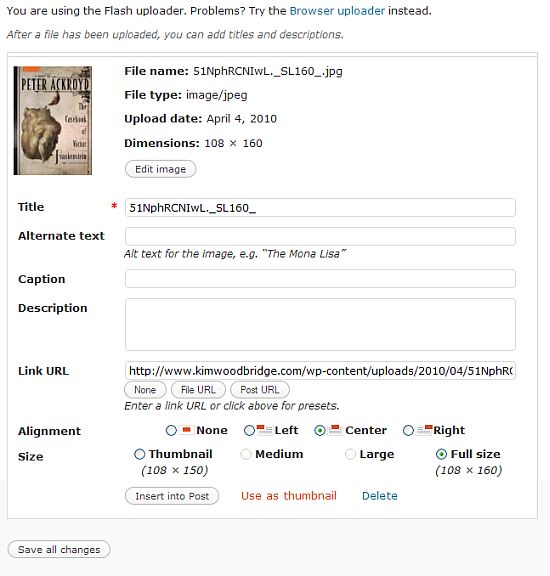
- Click on Set thumbnail and you can upload an image the way that you normally do. Instead of clicking on the Insert Into Post button, click on the Use as Thumbnail link and then Save.
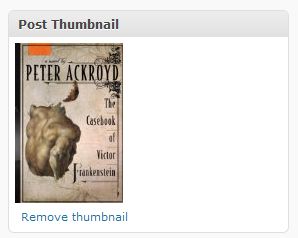
The image will be displayed in the Post Thumbnail box.
- You now have a Post Thumbnail image but it doesn’t show up on your site. The code needs to be added to the template file where you want it displayed.
The code is<?php the_post_thumbnail(); ?>
- Currently I use the Thumbnails for Excerpts plugin to display a thumbnail image in my archives. I plan on adding the post thumbnail code and using the post thumbnail rather than being dependent on the plugin. I would add the code next to the code that displays the excerpt. Of course, since I have over 400 posts this will be quite an undertaking.
As I mentioned this will should already be available on newer themes. If you are using an older theme and want to use this feature, you will need to add the code manually.
photo credit: red twolips

Kim, I love your teaching skills. You know in the end most code things I let you do because you do them so well. But for the people who are code-friendly, you provide amazing free resources that have so much value.
.-= Julie Walraven | Resume Services´s last blog ..Getting in the door: Networking with Informational Interviewing =-.
Hi Julie – Thank you! One of my goals is to write how-to’s in a way that people can actually understand. Granted, they might not want to touch the functions file, and I don’t blame them, but so many tutorials I come across are really hard for non-techies to understand.
Now let’s see if I actually set this up for 400+ posts. ;-)
What Julie said. :)
.-= vered – blogger for hire´s last blog ..The Wow Factor: Is It Ruining Our Culture? =-.
Thanks Vered :-)
Why is this more useful then adding as a photo as usual? Just the size difference?
.-= Dennis Edell | Direct Sales Marketing´s last blog ..DEDC Remains DoFollow – BUT… =-.
Hi Dennis – This is really useful for themes that utilize thumbnails such as magazine layouts. The Post Thumbnail feature can be used rather than custom fields and an image resizer script.
Hey Kim,
I tried to figure out the ways to get the thumbnails right for my blog… but every time I got stucked in the php coding, I am not gud at it.. But now it seems simple, I am pretty sure that I can do it now.
Thanks for posting it.
Hi Rick – It isn’t too hard – jus be careful editing your functions file.
hi,
thanks for the tip.
but i am stuck bcos the thumbnail is still not visible in the post even afer adding
please help me
Did you add the thumbnail code to the correct template? Are you using version 2.9 or higher?
Hi,
I am using using WP 2.9.
I managed to fix the problem.
thanks for the response