

Recently I read about the WordPress Plugin, Insights, which is designed to make it easy to insert images, video, wikipedia, blog and book information to your blog posts.
I tend to be wary of plugins like this because while they can make posting easier, they tend to slow down the WordPress workspace. And, of course, we tend to be on a quest to use as few plugins as possible.
But this one intrigued me so I decided to install it and test it out. And, surprisingly, I’ve been pleased with the results.
Install and activate the plugin the way you always do. The go to Pages > Edit or Pages > Add New and scroll down to just below the write post area. You will see an new area called Insights that looks like the following.

You can search for articles on your own blog, images, videos, wikipedia articles, google, news, blogs, and books. You can also add a google maps module. You need a google maps api key and the instructions are provided in the plugin’s readme file.
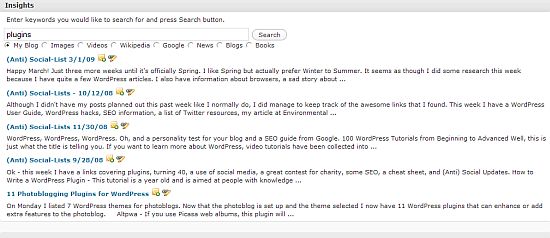
- My Blog – this searches your own blog for articles related to the one that you are writing or based on your keyword search. In this example I searched on the word plugins and the first 5 articles were returned. There are two icons next to the title of the post; one is to edit it and the second is to insert the link into the article you are writing.
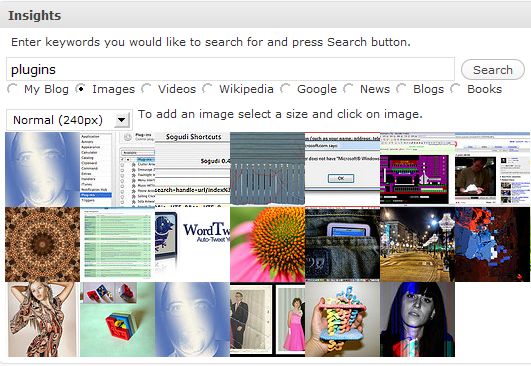
- Images – searches creative commons images that can easily be inserted into your post. To add an image, select the size and click on the image. This, however, does not add the image credit, which would still need to be entered manually.
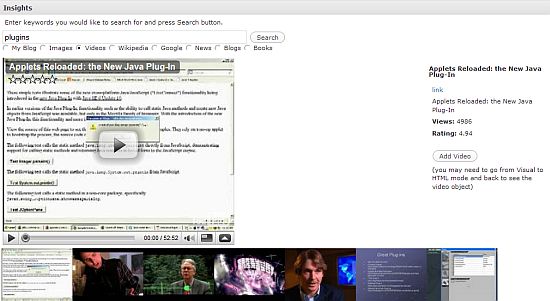
- Videos – searches youtube for videos that match your keywords. Clicking one the video will bring it up full size so you can play it. Then click on the Add Video button on the right to add the embed code to your blog post.
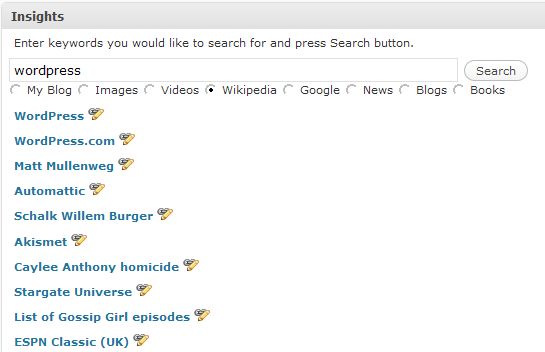
- Wikipedia – Searches Wikipedia for articles related to your keyword search. A list of articles appears with a link icon next to each title. Clicking on the the icon will insert the link to the article in you post.
- Google – Simply searches google for related web pages. The link to the article can be inserted by clicking on the icon.
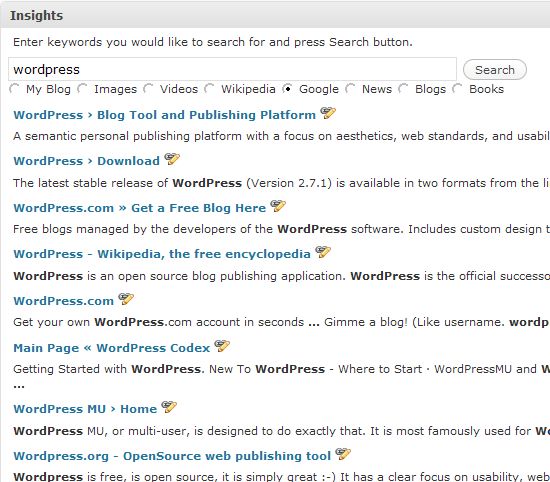
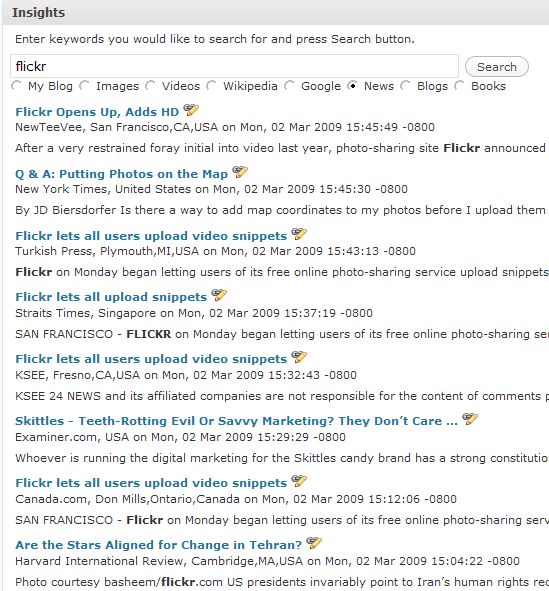
- News – a search on relevant news items. Again, clicking on the link icon will insert the link to the article in your post.
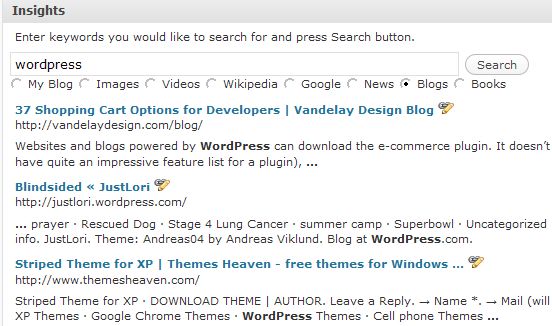
- Blogs – performs a google blog search on your keywords. The link icon will insert a link to the article in your post.
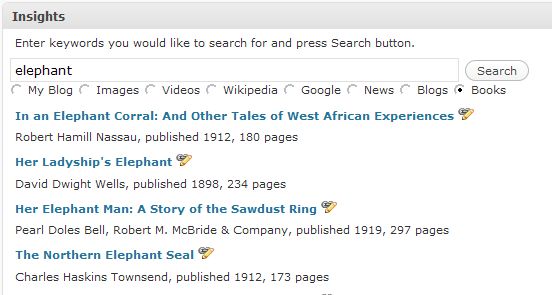
- Books – And, finally, books searches for books related to your keywords. You can easily insert a link to the book into your post.
I had a couple of issues with the plugin but this is personal rather than related to it’s functionality. When I search flickr or youtube I have my options set to filter out adult content. This is primarily because my daughter uses my computer and I also don’t need that type of material. The plugin doesn’t have that type of filter so sometimes I get strange results for my searches. Otherwise, for someone who wants to reduce plugins, I really like this one. It doesn’t seem to slow down the admin area, it searches quickly, and it seems to produce accurate results.
What do you think? Is this useful to you? Is this something that you would use?

this seems very interesting indeed. i will take a look and ofcourse check out the resource usage too :P you know me all resource crazy :)
stratosg´s last blog post – Member Of The Month: February
Hi Statros – I didn’t notice any resource issues but would be interested to hear what you find out in your investigation.
Hi Kim,
Thanks for the review of the plugin. I could see this plugin being really convenient. Just being able to use one plugin for all of this media could be really helpful. Thanks for bringing up your couple of issues with the plugin too.
Jim
Jim´s last blog post – Awareness Test
Hi Jim – I wonder how it would work on your site since you use a lot
of videos – or maybe it would find results that were completely unrelated.
The issues – LOL. Yep, Kim doesn’t want any nudity in her results,
Hi Kim – This looks great! I have Zemanta already, but this one seems more comprehensive. I like having “backup” reference for my posts and changing up the media/means keeps things interesting! Thanks for this.
Betsy Wuebker´s last blog post – NETBOOKS – LESS IS MORE THESE DAYS
Hi Betsy – I liked this one better than Zemana. I don’t think it’s as slow,
it doesn’t stand out as much and it finds results quickly. And it’s true –
it covers a lot of areas.
That’s a great summary of a plugin. I love that you gave us all the screenshots and results of searches. It’s so nice to have someone else try things out so we don’t have to!
Currently my main searches are for images with a Creative Commons license that allows commercial use. I have a Favorite for that on Flickr. So I don’t think this will help with images. However, it does get tedious when I need to do Wikipedia and my own blog, so it might be worthwhile anyway.
Dot´s last blog post – Akashic Records Reading, Part 2
Hi Dot – I think if your current system is working for you then you
don’t need to add an additional plugin. I installed and tested it for this
article but don’t know if I will get in the habit of actually using it.
NIce find Kim, this looks very useful
Madhur Kapoor´s last blog post – Download a Website with WinHTTrack
Hi Madhur – Do you think you will install it?
Thanks for the review. As you say, I tend to avoid plugins as much as I can. But this one does look intriguing.
Hi Vered – LOL – The goal is to never leave the WordPress interface
again ;-)
I was just going to ask, what was the problem with just opening a new tab to get these things! You might have noticed I am not the most technical person – is it to do with the fiddlebar?
Tracy´s last blog post – Shangri-La Diet Week 1 Recap
Hi Tracy – LOL – That is a valid point. I think the plugin does, however, make adding in embed code, etc easier. Because opening additional tabs with the fiddlebar is A LOT of work ;-)
I like the sound of this one. I tried Zemanta, a Firefox add on (although I do not remember actually installing it… almost like it installed itself ). It generated content for your blog based on keywords, but it slowed down my Firefox considerably. It also did something in Gmail that would keep throwing out “this script is running slowly” errors. But this one sounds like it might be worth having a go at.
~ Kristi
Kikolani | Blogging, Poetry, Photography´s last blog post – A Hummingbird Nest – Photos & Haiku
Hi Kristi – I didn’t have any problems with errors in Zemanta but I thought
it was slow.
Zemanta never worked for me. All it did was slowing down my blog. Good thing about Insights is that, it not only works fine, it is pretty fast and light.
Raju´s last blog post – Top 10 Product Review Websites
I have been using this for the last 2 weeks, but was not able to make a complete use of it yet. The image search can be little more accurate and may be they can go beyond Flickr search.
Raju´s last blog post – Koobface Facebook Worm – A Detailed Analysis
Hi Raju – Each release has had more features so maybe they will
add more sources for the image search.
Hi Kim – This sounds useful. Sometimes my image publisher doesn’t work anyway. And I like adding stuff from Wikipedia and YouTube. One really annoying thing about wordpress is that sometimes the link to button doesn’t work, so you have to type the link in by hand.
I thought it would have improved with the new version but it hasn’t. Does this happen to you too?
Hi Cath – I don’t have that problem but I remember you mentioning
it before. I started doing some research on the problem but didn’t
find a definitive answer as to what was causing it.
The usability and sheer number of plugins to fit any type of blog is probably the number one reason why I love WordPress more than any other blogger platform out there.
Hi Angie – Thank you for visiting and commenting. I agree – there is
a plugin for almost everything you can think of.
Kim,
When I asked about the search interface in one of my recent comments, in fact I was expecting this feature within WP post edit area or image inclusion/gallery interface. Sounds like a really handy plugin.
Regarding its usage for myself…well, as you know I am still a little bit apprehensive of using media material from elsewhere… Wikipedia search is something that I regularly do while writing about most topics. I do that directly on the browser. Hence I may not use the plugin myself but I am sure this is useful for a lot of people who have rich media blogs.
Ajith Edassery´s last blog post – He who is an ‘MMO blogger’…
Hi Ajith – I agree that this is especially useful for those with a lot
of multimedia on their blogs. I like the plugin but I have a hard time
breaking the work habits that I have setup. And usually I only need a
photo – I already have the links from my research.
Hi, Kim, Just like you I only uses photos on my posts, but this plugin seems very useful and can not resist checking it out, thanks for digging out nice things like this.
Chinese Girl´s last blog post – Zhengzhou Travel
Hi – Thanks! Let me know how it works for you.
This sounds pretty cool, Kim. I’m off to go give it a whirl. Thanks!
Hi Debi – Great! I hope the plugin works out for you.