

Under Tools in the WordPress settings are the import and export options. This can be really useful when you are moving a blog from one location to another or if you are moving a WordPress.com hosted blog to a self-hosted one.
The export/import feature, however, does not include your blogroll. If you have a large one it can be very tedious to recreate.
But, there is a way, to transfer the blogroll so it doesn’t have to be recreated manually.
In your WordPress installation is a file called wp-links-opml.php. This opml file contains all of your blogroll data.
Here’s how you can obtain the info.
- In your web browser go to the site that has the blogroll that you want and include the name of the opml file at the end of the URL. For example, http://www.you-site.com/wp-links-opml.php
- You will see an ugly XML file in your browser that looks similar to the following:
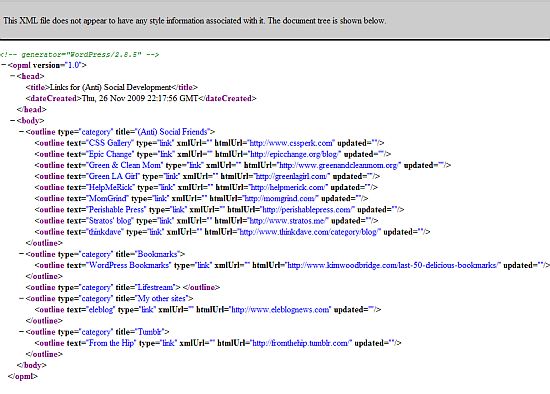
- Save this as a text file. It MUST be a .txt file to import properly. You can go to File > Save Page As in your browser (Firefox). Name the file and put .txt as the file extension and change Save As Type to All Files. You can also highlight the text, copy to the clipboard, paste into a text editor and save as a .txt file.
- So now that you have the links saved in a text file, go to your new blog and in WordPress go to Tools > Import.
- Select Blogroll, which is the 2nd choice.
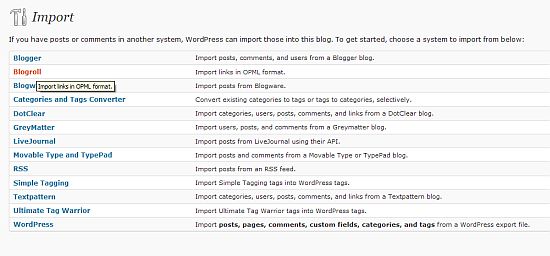
- Choose From Local Disk. Locate the saved text file on your hard drive.
- Here is the one downside to this. You can select a Category for your links, if you even use that feature, but you can only choose one. So, if you were using multiple link categories, you will still need to do this part manually. But, at least everything didn’t have to be done manually.
- And that’s it. You’ve moved your blogroll from one blog to another. As I mentioned this is very useful for those moving from a WordPress.com blog as they don’t have direct access to the database.
Yay! Less typing that recreating all of the link data manually.
photo credit: Laundry Broad

I never had to do this but I can see how it would be helpful.
Thank you for the tip.
.-= StevenLeconte.com´s last blog ..This Guy Is My Hero =-.
Hi Steven – Thanks. I had to do it recently so I thought I would do a quick
post on how to do it.
I’ll join your “yay” :)
.-= vered | blogger for hire´s last blog ..Former Miss Argentina Dies After Cosmetic Surgery =-.
Hi Vered – :-) Yeah, I’m not much for data entry.
Sidenote – Blogrolls are inherently do follow. Keeping a long list will make Google suspicious, at least.
.-= Dennis Edell´s last blog ..Blogging Halted Here – Don’t Despair, This Is A Good Thing! =-.
Hi Dennis – Yes, they are. If it’s an issue, there a couple of nofollow
blogroll plugins.
Its a Great post.
I am very new to WordPress and needed to add the same Links of Blogroll of one site to other 5 sites having wordpress.
This is surely gonna make the task easier.
Thanks for this nice post.
Hi Param – Great! I’m glad it will help.
There is a plugin for version 2.7.1 but this wont work on the latest 2.9.2
http://wordpress.org/extend/plugins/import-blogroll-with-categories/
if anyone know of a plugin that will import blogroll with categories in the latest version let me know
btw i ftped the blog to my hd … and i just imported via wp that .xml file … which loaded the blogfile fine without the categories of course… no need for a text file if you ftped the site or even the file down.
if and when the plugin works you will find import and export under link categories panel with two new features
thanks
Hi Tina – Thanks for the plugin info – too bad it doesn’t work with the current version. And it didn’t occur to me that I would have the file on my hard drive after backing up the site – duh. ;-)
Thanks!
Its only because I don’t know half of what i am doing with wordpress about the only thing i’ve figured out properly is the seo stuff (needs must of course). that I didnt realise it had to be a text file and just thought it says import so that should be ok.
Getting the categories back is the least of my problems right now – sigh. My host is down totally – just got emails back, but I moved one domain which is only for emails which is for my hubbies business which is critical, to another host I have … and on there the server my account is on started to run out of space so i have to wait while they fix that. I am a jinx so if you find anything going wrong … I shall say sorry now. I walked into the library to get a printout of some urgent stuff cos my printer stopped working and well you guessed it their printer broke….. thats three broken things so hopefully I am safe for a whie LOL … sheesh btw nice site:)
Hi Tina – Oh no! I have a friend like that. Anything electronic that she touches stops working – toaster ovens, coffee makers, etc …
That must be so frustrating for you …
This just same me about 15 minutes of data entering. Thanks for the detailed post with screenshots.
Hi Roch – Great! I’m glad it saved you some time.