
This post is the result of someone asking me if the number of comments listed on the comments page in the WordPress admin could list more than the default 20. I wasn’t sure so I looked around in the settings and discovered that, like the number of lines in the edit/write screen, that this setting can be changed and it doesn’t seem to be very well known.
It’s another one of the “hidden” or “I didn’t even know it was there” settings.
-
At the top right of the Pages, Posts and Comments screen in the WordPress admin is a tab that says ‘Screen Options’.
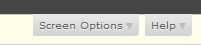
- Click on the tab and a dropdown will appear. It included elements to display or remove from the page and the number of pages, posts or comments. The default is 20. I changed mine to 40 for this example.
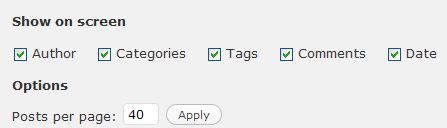
- Once it has been changed you will have that number of posts, pages, or comments in the WordPress admin list on each page.
I think this would be especially useful for comments – especially if you have a lot of them to moderate and answer.
Did you know this setting was there? I didn’t – not until I was asked.
photo credit: THEfunkyman

Nice! Hadn’t bothered to click the screen options box. Now I know.
On a related note, do you know how to increase the size of the box where our blog content is placed for editing? If I’m not being clear, the “Add New Post” box.
.-= Colleen´s last blog ..Funny Faces, Cool Dads =-.
Hi Colleen – I think this is what you are looking for
http://www.kimwoodbridge.com/how-to-increase-the-writing-space-in-wordpress/
Hi Kim,
yes excellent tip which I have to remember to tell people about when I introduce them to WordPress. You can take these items for granted after a while so I really appreciate you reminding me of them to pass on.
Thanks for all of your efforts by the way in creating regular meaininful posts I enjoy reading.
kind regards
Tony
.-= Tony Cosentino´s last blog ..Twitter Weekly Updates for 2010-07-12 =-.
Hi Tony – I have to admit that a lot of these little admin customizations are things I never paid any attention to. I didn’t know this one was there until I was asked about it.
Thanks!
Being the person who asked you that question and sparked this blog post, let me add the “screen options” dropdown (for me, in wordpress 3.0) is in the top right of the dashboard window, not top left.
Thanks again for sharing. I thought you knew this all along!
.-= Ari Herzog´s last blog ..Marketing Paper Towels- TV vs YouTube =-.
Hi Ari – No, it’s top right and I fixed the text. I mix up right and left all the time. I’m not sure why but I like to blame it on being left-handed ;-)
I meant to link to you and failed to do so – sorry about that.
“I think this would be especially useful for comments” – I agree. I wasn’t aware of these settings. Thanks!
.-= vered – blogger for hire´s last blog ..Voskos Greek Yogurt- Review- Giveaway- Recipe =-.
Hi Vered – Great!
This is an excellent tip that many bloggers tend to forget. Some there are so many comments in the queue either to be replied or to be deleted so checking them only 20 at a time is quite slow. Thanks
Hi – It’s really useful for comments. Especially for sites that get a lot of them.
I did not know about this. I thought it depends upon the theme you’re using. Still, thanks for this information. :-)
Hi Walter – I’m glad it helped. It’s one of those simple but unknown WordPress settings.
Hi Kim, thanks for the information, I did not have a clue about this before and I also did follow your thread back to http://www.kimwoodbridge.com/how-to-increase-the-writing-space-in-wordpress/ which was also a new thing for me. Thanks from Lenny.
Hi Marbella – Great! I’m glad both articles helped. Whenever I do a new install of WordPress, I increase the size of the writing space.
I never use this, but think it will be good for comment page.
I think it’s really useful if your site gets a lot of comments.