

After you’ve been blogging for awhile the archive list in the sidebar becomes rather long. And I’ve often felt that unless your blog is a journal that the archives are kind of useless. Most people are looking for information on a topic, such as an article I wrote about Facebook, not a list of what I wrote in May 2009.
The only thing that the list seems to do is establish the age of the site. If there are only two months listed, the site is new. If it stretches on and on, the site has been around for awhile.
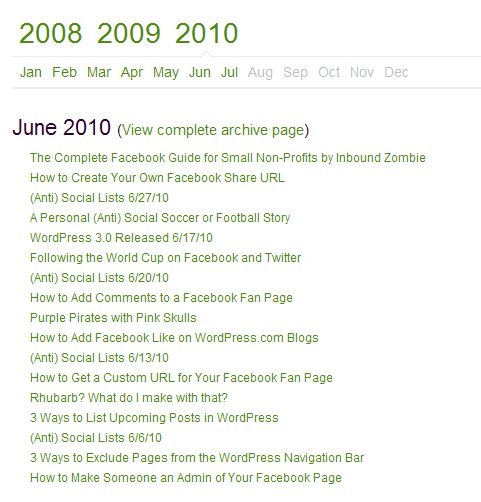
I found that at about the two year mark, the list of months was just getting too long. Even though I think the archives are kind of pointless I didn’t want to do away with them completely. And I didn’t feel like creating a custom archive page so I decided to try out the Smart Archives Reloaded Plugin.
- Install and activate the plugin
- Make a page called Archives, The Past, or whatever you want to call it.
- I didn’t want my page to be in the navigation so I excluded it. You can use one of these methods to do the same. If you are using WordPress 3.0 you can also use Menus.
- On the new page add the following shortcode:
[smart_archives]
- The options for the plugin are under Settings > Smart Archives.
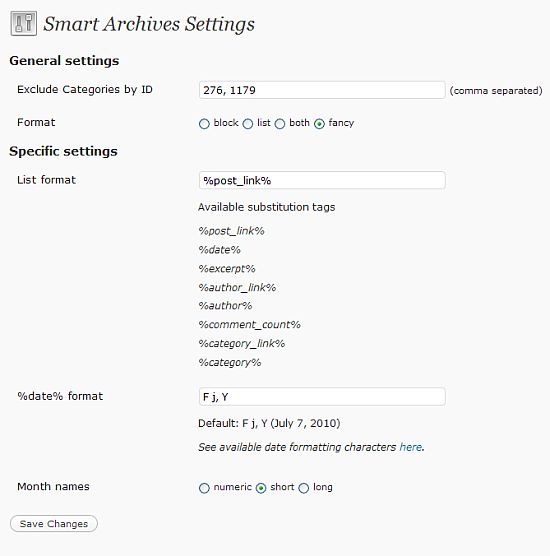
- Exclude categories by the category ID – will keep certain categories of posts from being displayed in the archives.
- The format – you can play around with this to see which one that you like. I selected Fancy.
- List format – you can set it to display by title, excerpt, date, category and more.
- Date format – you can select how the date is displayed.
- Month names – numeric, short or long
- I left the settings at the defaults except I did exclude a couple of categories.
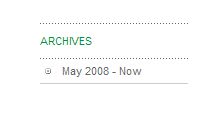
- I then added a text widget in my sidebar with a link to the new archives page. It could say Archives, the Past or a date range. Mine says ‘May 2008 – Now’.
Do you use archives in your sidebar? Do you think they are getting too long? Do you think this plugin is useful or do you have a recommendation for a different one?

I use a page as well, but I’m curious.
You want to keep it, yet exclude it; what exactly are you keeping it for?
.-= Dennis Edell | Direct Sales Marketing´s last blog ..Have You Written Any WordPress 30 Feature Posts =-.
Hi Dennis – I want an archive page but I don’t want it listed in my top level navigation where it says Home Portfolio, etc. I can hide the page from being displayed there but still link to it in other locations.
Smart. I may need to do the same once I change over the blogs; I’ll need more top navigation room.
.-= Dennis Edell | Direct Sales Marketing´s last blog ..Have You Written Any WordPress 30 Feature Posts =-.
Useful! Thanks. I have my archives on a separate page now – you actually helped me with that. :)
.-= vered – blogger for hire´s last blog ..What Was Your Worst Haircut Ever =-.
Hi Vered – I remember :-) I was thinking about that while writing the article.
I like the way this plugin gives you lots of different ways of listing the articles available in each month.
One of the problems with the basic date-based blog approach is that older posts tend to get buried. We’ve got over 500 posts now but don’t like deleting them because they they do seem to help the search engines index the site probably. But that does mean there is a lot of clutter. Providing a more detailed list of what’s in the archive is one way around the problem. .
So – another incentive to make the long-delayed upgrade to a more recent version of WordPress!
Hi Ian – I don’t think it’s a good idea to delete older posts – they are indexed and someone might be linking to them. Sometimes I highlight older posts with a list of popular posts or posts on a particular topic.
I dont seem to be getting the year /month browser at the top.
http://www.troyrutter.com/about/archives
Any idears? This plugin looks great!
Figured it out, I was using archives as a subpage, with a parent. Apparently it needs to be a “main” page. :)
Hi Troy – Glad you got it. That’s good to know – I didn’t know that it wouldn’t work properly on a subpage.