
Update 2/16/11: This only works on personal profiles. It does not work on fan pages. The photos can not be set in a particular order on fan pages.
On the new Facebook profiles there is a row of photos below your name, which are photos that you have been tagged in. People have been doing some cool things with those photos so I decided to figure out how that was one. Below are some examples of creative photo use and instructions on how to set it up.
Of course, all of your hard work can be ruined by being tagged in a new photo.

The hardest part is getting the images to display in the correct order. I uploaded and tagged my letters a couple of times before I got it right. Also, while FBOOK isn’t the most creative use, it makes me laugh ;-) I also considered using the word NINJA but that has been played out.;-) I could also use my name with an image on either side.
Instructions
- Create your images or crop current ones. The should be 96x67px in order to fit in the space provided.
- Upload the images. It may be possible to upload them all at once if you are careful about the order but I found it was easier to do it one by one. So, upload the first image and then tag it with your own name.
- Within the album, you can tag it by clicking on it and a drop down box will appear. Your name should be the first one in the list.

- Again, do this one by one. Perhaps the upload order doesn’t matter but the tagging order definitely will make a difference.
- If you want to spell a word, upload and tag the images in reverse order. So, for FBOOK I uploaded and tagged in this order K-O-O-B-F. If you want the images to be in a specific order, do the same thing and upload and tag them in reverse order.
- And that’s about it – you will have your custom images or word on your Facebook profile page.
Keep in Mind
If anyone tags you in an image, that image will show up in these photos and mess up your hard work. You can change your privacy settings so that images you are tagged in only show up to you but this causes a couple of problems.
- You will still see the tagged image in your row of photos.
- If you set tagged photos to only visible to you, then you can’t set up the custom layout that I’ve described in this article. You would be the only one that sees it.
Facebook has made a mistake in not allowing us to turn off tagging by others completely. I would prefer to be able to tag photos of myself and not let anyone else tag photos of me.
Also, if you have any “friends” that are practical jokers, they can tag a bunch of photos of you and do something like this.

Here are instructions for removing and hiding tagged photos of you.
More Examples
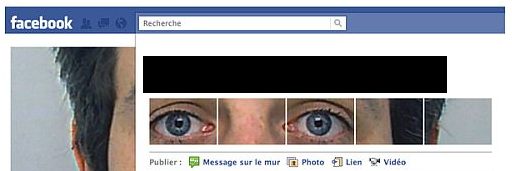


The photos on the new Facebook profile can be used creatively but can also be abused by your “friends”.
Do you have any examples of creative uses of the these photos?
photo credit: Rob Larsen

I saw the face one last week and it occurred to me that I could embed a tagline or something. So, that’s what I did. I need to fix the vertical breaks though:
http://facebook.com/sciencebase
Hi David – I don’t think the photos are available to everyone – when I go to your page I don’t see any photos at the top.
I have a few graphic fans on my list and they have been having lots of fun stringing together images to make some cool effects on heir profiles.
I am hoping one of them will show me how to link up the images to display my blog url. :)
Hi Dean – The URL is a great idea – of course, then people will try to click on it to go to the site ;-)
I saw this a week ago and tried it as well. I then found out that it was easy to do as long as you know the basics of photoshop. Really cool. :)
Hi Pam – Great!
I wondered how people were doing this – thanks so much, Kim! Hopefully Facebook will make this more user-friendly for us! (We can hope, right?)
Hi – ha! Don’t make me laugh. Facebook? User friendly? ;-)
I don’t like putting a lot of pictures in my facebook due to privacy concerns and I especially hate it when friends tag u in unflattering pics
Hi Henway – I agree – I wish tagging could be turned off.
“If you set tagged photos to only visible to you, then you can’t set up the custom layout that I’ve described in this article. You would be the only one that sees it.”
Actually I was able to do it having the tagged privacy on by changing the profile picture. That works as well.
Hi – I’m not quite sure what you mean – are all those photos considered profile pictures?
A friend of mine did something really cool with this — check out http://facebook.com/danrmorris
I wondered how he did this…glad I found this tutorial! Thanks
Hi Kim – That one is really nice! My guess is he made it in Photoshop or something and then sliced it to the right sizes. Thanks.
Can you do this with fan / like pages rather than personal pages. Having difficulty tagging the pictures
Hi Una,
The order of the photos on a page is random. Even if they are tagged, we can’t set the order of them like we can on personal profiles.
Grrrr. I’ve been trying to do this on my fan page for the last 2 hrs!! Thanks for letting me know it can’t be done.. :(
Hi Sarah – :( It is frustrating – I don’t know why we can do it on profiles and not on pages.
Hello ! It’s a good page !! I have a small problem, I uploaded photos in a galery but I don’t know how to tag a photo after ?
Someone ca help me ?
Best regards
Fred
Click on Photos > the gallery you want to edit > Click on the picture > On the bottom left is a link that says ‘Tag This Photo’.